Getting Started (S01E01)

Ok so you installed Maintainerr and don't know where to start.
The rule system behind Maintainerr is quite complex, and therefore powerful. Getting started can be a little daunting at first. That is only because it is new to you. When you get the hang of it, you will be cleaning up that mess you call a library in no time. This is the first in a series of tutorials that should help you get more familiar with the rules and rule setup.

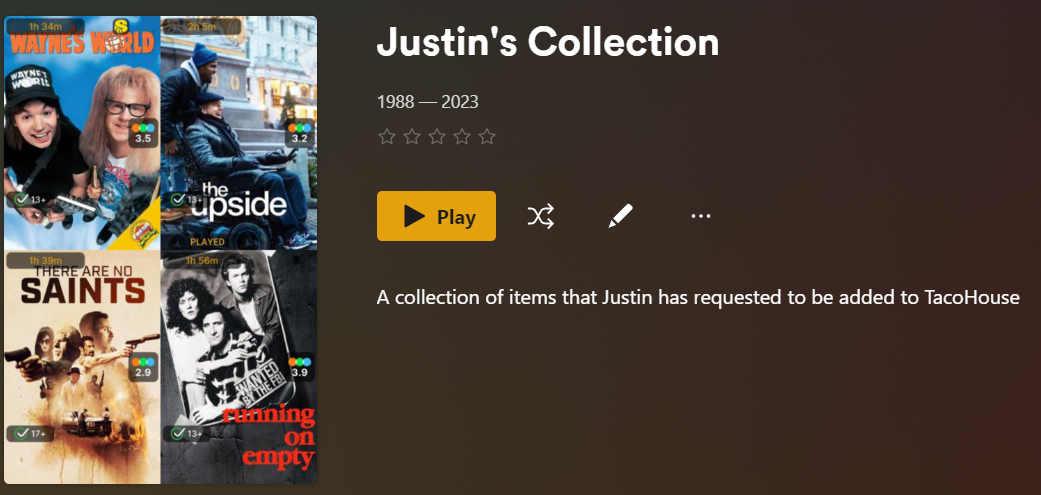
Let's take the above movie as an example. This isn't a real movie, but for the purposes of this tutorial we are going to pretend. This movie has the following attributes across Plex, Overseerr, and Radarr:
Plex
| Added | Last Viewed | Times Viewed | Audience Rating |
|---|---|---|---|
| 3Nov2023 | 10Jan2024 | 4 | 7.3 |
Overseerr
| Requested by | Requested Date | Times Requested by Anyone |
|---|---|---|
| user_girl123 | 2Nov2023 | 4 |
Radarr
| Release Date | Is Monitored | Runtime |
|---|---|---|
| 31Oct2023 | True | 114 minutes |
This information can be looked at for an actual item in your Plex library. You can do it through the Plex UI or you can parse through the XML of an item.
We want to make a rule that would add this movie to its collection.
There are many more attributes available in the API responses of Plex, Sonarr/Radarr, and Overseerr. We are only looking at these specific ones for the tutorial.
Also, this won't be the only movie in the collection. However, all of the other movies that will be added into this collection matched the rule set for the same reasons.
Rule Setup
We will start from the top of a new rule.
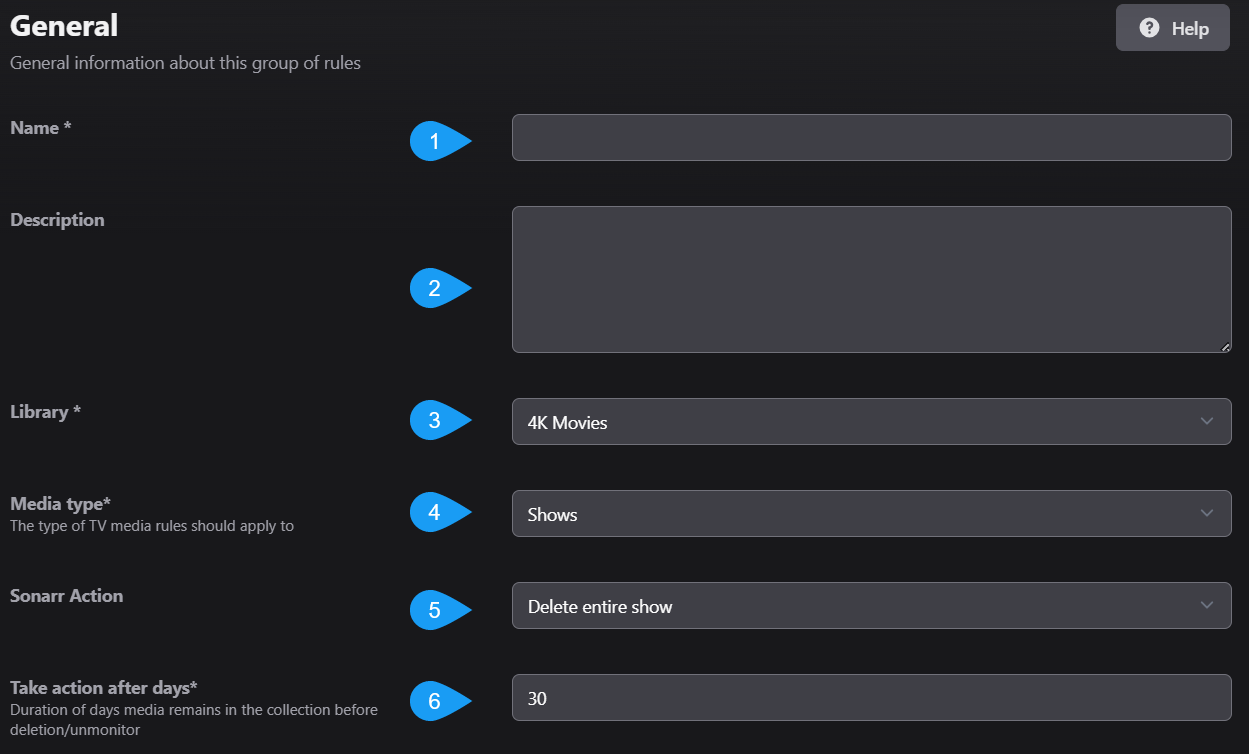
- 1: This is the name of the Rule, and will eventually be the name of the Collection that gets created.
- 2: Self explanatory, but you can put whatever you want here. It will be shown in Plex when you open the collection.
- 3: Drop-down list of your Plex Libraries. Which library is this rule going to be run against?
- 4: This will not be shown if you select a
Movieslibrary in step 3. If you selected aTVShowlibrary, your options will be shows, seasons, or episodes. What type of TV show media are we going to run the rule against? An entire show, just seasons, or just episodes? Different options will be made available to you or taken away, depending on what you select here. - 5: Sonarr/Radarr action is what is going to happen after the
action after daysset in step 6. Options are dependent on the library and media type from above.Deletewill remove the files and the item from Sonarr/Radarr.Unmonitor and deletewill unmonitor, but not remove, the item from Sonarr/Radarr and then delete the files.Unmonitor and keepwill unmonitor the item from Sonarr/Radarr and keep the files. - 6: Think of this as a delay setting. How many days after this rule is ran, items have been matched to this rule's filter parameters and added to the collection, will we execute the action set in step 5?
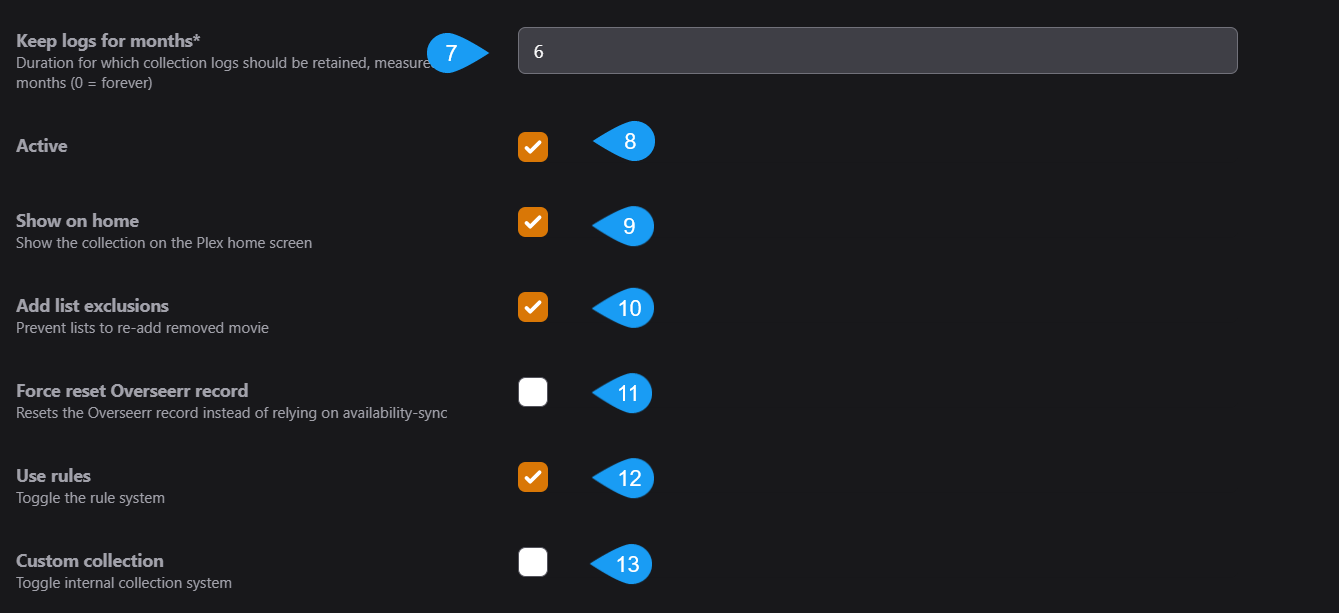
- 7: How many months are we going to keep logs of this collection's actions?
- 8: Is this Rule active? Will it be one of the rules ran either by a manual run, or through periodic runs?
- 9: Is this collection going to be shown on the Plex Home screen, or are you only going to be able to see it through the Plex Library screen?
- 10: When the action set in step 5 is taken, will Maintainerr also send a hit back to Sonarr/Radarr that excludes this item from being automatically added by any import lists?
- 11: It is recommended to keep this option off as it uses an outdated method. Maintainerr now automatically does this. When the action set in step 5 is taken, will we tell Overseerr that this item is no longer available and can be requested again?
- 12: You can toggle the rule system off and on. This is useful if you have collections in Plex that you want to see in Maintainerr, but don't want any actions taken on the collection.
- 13: You can create a collection in Plex, and then use that collection in Maintainerr. If you are doing that, tick this Custom Collection box to on. This can be useful if there is a collection made by PMM or by you, and you want to execute some rules against it.

Rule Configuration
Now we are getting into the details. After the settings above have been configured to your liking, you start to craft the rule logic. There is a button labeled Community, which contains rule setups that have been shared by others. Clicking on this button will list the uploaded rules, and you can use one of these rules if you wish. Clicking on a rule and then clicking on the info button down below will give you the uploader's description of that rule and possibly how it works.
Community rules are just that, from the community. They may not work like they say they do. They may not be formatted properly. It can be a nice place to start, but I personally wouldn't rely on them as everyone's situation is different.
Below the Community button there are two other buttons: Import and Export. You can import a rule from a txt file in YAML format. This is an advanced method, but it is an option.
If you want to go down this path, I would choose one of the Community rules, it doesn't really matter which one, and then use the export button. You will get a generated YAML format of the rule. If you are familiar with YAML this will be a good place to start.
Take a look at this page for the proper syntax of each parameter: Rules Glossary.
If you are looking at a rule that you have already created, you can export the rule in YAML format in order to share it or textually edit it.
Rules and Sections
Understanding rules and sections can be crucial to getting your rule setup properly and achieving your desired outcome.
When you first start, you will be in the first section: Section 1, Rule 1. A section is a grouped set of rules with one output over the whole section, depending on what was matched in the rules within that section.
AND
So let's try an AND example.
- Our rule 1 setup gains us output X and output Y.
- Our rule 2 setup gains us output X.
- Our rule 2 is set up with an AND operator to rule 1.
- The output of this section would be X only. Since X was matched by rule 1 AND rule 2 but Y was only matched by rule 1, it will not be included in the section output because we said we want the output of the section to be everything that matched (rule 1 AND rule 2).
OR
Now an OR example.
- Our rule 1 setup gains us output X and output Y.
- Our rule 2 setup gains us output X and output Z.
- Our rule 2 is set up with an OR operator to rule 1.
- The output of this section would be X, Y, and Z. Since X and Y were matched by rule 1, and X and Z were matched by rule 2, they are all included because we said we want the output of the section to be everything that matched (rule 1 OR rule 2).
This is probably the simplest form of a rule setup that you can get, unless of course you are only using one rule because anything matched by that one rule becomes the output.
AND/OR
Now let's try a mixed AND / OR example.
- Rule 1 setup gains us output X and output Y.
- Rule 2 setup gains us output X.
- Rule 2 is set up with an AND operator to rule 1.
- The output is X, as before.
- Rule 3 setup gains us output G and output M.
- Rule 3 is set up with an OR operator to rule 2.
- The output of the whole section would be X, G, and M. Since X was matched by rule 1 AND rule 2 but Y was only matched by rule 1, the output of rule 2 will be only X. Since G and M were matched by rule 3, and we said we want the output of the section to be anything that matches ((rule 1 AND 2) OR rule 3), we get X, G, and M.
This is a very good jumping off point for you to start making rules. If you are still not 100% confident yet, or just want more, take a look at S01E02 and go even deeper down the rabbit hole.